To benchmark how much each WordPress plugin slows down a site, I first had to do something nobody seems to do at scale: install every plugin on WordPress.org, one at a time, in a clean isolated environment, and switch it on.
That second step turned into an accidental audit of WordPress plugin quality. Most plugins behaved. But a stubborn minority couldn’t clear the lowest possible bar — turning on without taking the site down with them.
Here’s the number that matters first, because I don’t want you to walk away thinking the plugin directory is a minefield: about 94% of the plugins I tested activated cleanly and ran in all three contexts I measure. The WordPress plugin ecosystem is, broadly, fine.
But I benchmarked 54,649 plugins, and 3,313 of them — roughly 1 in 16 — permanently failed to even run. Not “ran slowly.” Not “had a bug somewhere deep in a settings page.” Failed to start. White screen, fatal error, or worse.
This post is about that 6%: what breaks, why, and how to spot the pattern before one of them ends up on your site.
How I tested
Every plugin gets the same treatment, with no human in the loop:
- Spin up a clean, isolated WordPress container (current WordPress 6.9.x, a normal PHP version).
- Install the plugin straight from the WordPress.org repository.
- Activate it.
- Measure three contexts: activation, the wp-admin dashboard, and the homepage.
No other plugins. No theme tricks. No “it works on my machine.” If a plugin can’t survive a fresh, vanilla install, that’s not an edge case — that’s the plugin.
When a plugin fails the same way repeatedly, I mark it as a permanent failure and record exactly how it died. Those death certificates are what this post is built on.
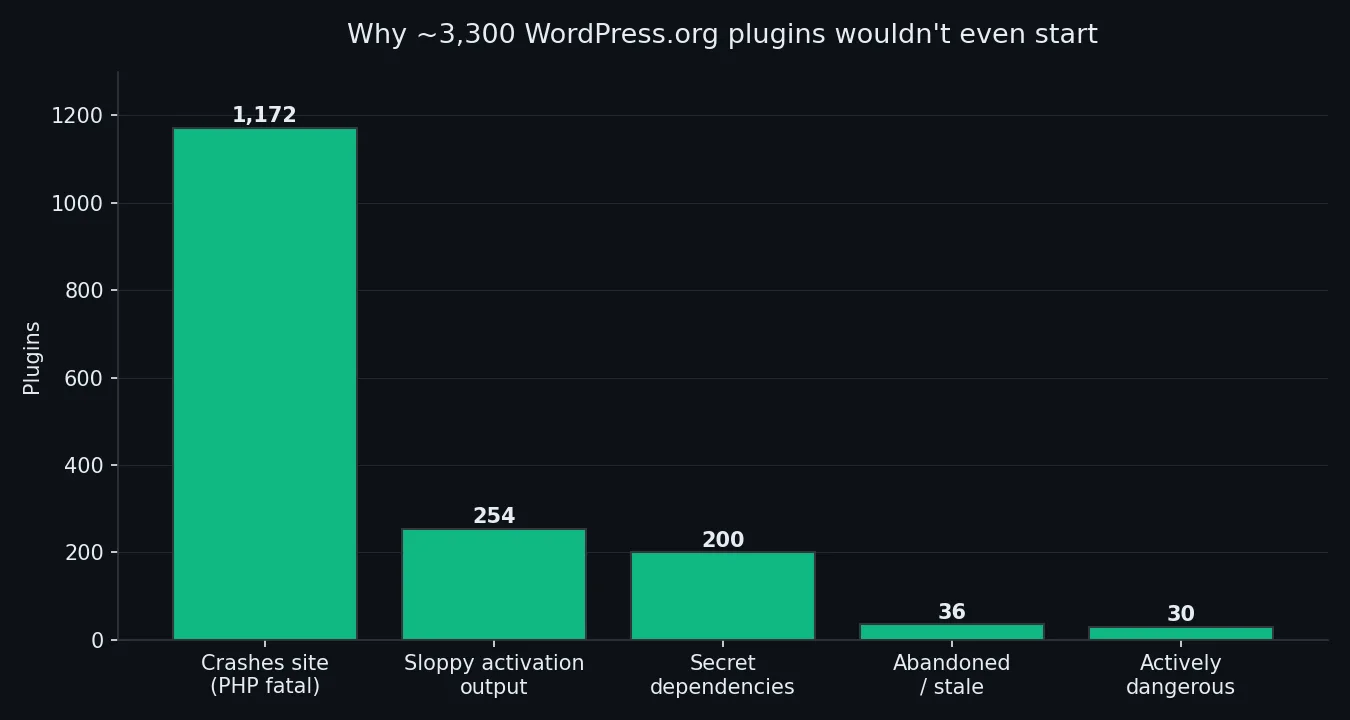
The five ways a plugin fails to start
1. It crashes the site on activation (1,172 plugins)
This is the big one, and the worst one. You click “Activate” and the site falls over with a PHP fatal error. No graceful message, no “please configure me first” — just a white screen of death or a 500 error.
Breaking down why they fataled tells you a lot about how the package was shipped:
| What killed it | Plugins |
|---|---|
Missing file (a require/include pointing at a file not in the zip) |
510 |
| Call to an undefined function or method | 440 |
| Other fatal errors | 159 |
| Uncaught exception | 59 |
| Class not found | 4 |
The 510 missing-file crashes are the most damning. That’s not a subtle compatibility issue — it means the plugin author published a zip that doesn’t contain all of its own code. It never could have worked. Nobody activated it once before shipping.
The 440 undefined-function crashes are the classic PHP-version mismatch: the code assumes a function exists that your PHP doesn’t have (or the author leans on another plugin that isn’t there). It’s the same failure mode behind most crashes after an update.
2. It dumps junk during activation (254 plugins)
These don’t fatal — they’re messier. On activation they print raw text or PHP notices straight into the response. WordPress even flags it for you: “The plugin generated unexpected output.”
It looks harmless. It isn’t. Output during activation can corrupt HTTP headers, break redirects, and quietly sabotage anything that runs after it. More to the point, it’s a tell: if a plugin is leaking notices in production, the author shipped with debugging on and never looked at the result.
3. It has secret dependencies (~200 plugins)
This is the rudest category, because it’s so avoidable. The plugin needs another plugin to function — and instead of saying so, it just fatals or refuses to activate.
| Hidden requirement | Plugins |
|---|---|
| Requires WooCommerce | 146 |
| Requires Elementor | 35 |
| Requires Contact Form 7 | 11 |
| Requires Genesis / bbPress / others | ~10 |
WordPress has supported a proper Requires Plugins header since version 6.5. A well-built add-on detects the missing dependency and shows a polite admin notice. These ones don’t bother — they assume you already have the parent plugin and detonate when you don’t. If you’ve ever fought a mysterious plugin conflict, this is often the root.
4. It’s abandoned (36 plugins)
A small but telling group: 31 have version requirements so out of step with current WordPress that they won’t load, and 5 ship with invalid file encoding — a sign the code hasn’t been touched in years. These are the plugins still listed in the directory with a four-year-old “last updated” date, waiting for someone to install them and get burned.
5. It’s actively dangerous (30 plugins)
The rarest and scariest. 28 plugins made WordPress completely unresponsive on activation — a hang or a runaway loop that takes the whole site with it. 2 triggered WordPress’s own critical-error protection. Thirty plugins out of 54,000 is a tiny fraction, but if one of them is the one you install on a Friday afternoon, the statistics won’t save your weekend.
What this does not mean
I want to be precise here, because it would be easy to turn this into a scare piece, and that wouldn’t be honest.
- ~94% of plugins were completely fine. The directory is not broken. Most authors do solid work.
- Not every failure is the author’s fault. About 80 of those 3,313 are artifacts of my automated harness — a container hitting a memory ceiling, a transient network blip, a benchmark that gave up too early. I exclude those from the “bad plugin” story.
- I give borderline cases the benefit of the doubt. While writing this, I found ~500 plugins that had activated fine and rendered a homepage, but tripped my admin-screen check — almost certainly setup wizards that redirect on activation, not real failures. I pulled them out of the failure set and re-queued them. The 3,313 that remain are the ones that genuinely wouldn’t run.
So the clearly-the-plugin’s-fault group is somewhere around 1,700–1,900. Call it 3% of everything I tested. Small. But “small” is cold comfort when it’s your client’s store that won’t load.
How to vet a plugin before you install it
You don’t need my infrastructure to avoid most of this. You need about ninety seconds and a little discipline:
- Check the “Last updated” date. Anything past a year is a yellow flag; past two years is a red one. This single check catches most of the abandoned category.
- Check active installs vs. reviews. A plugin with 50 installs and no reviews has, by definition, not been activated on many real sites. You’d be the QA team.
- Read the most recent 1- and 2-star reviews. Not the average — the recent angry ones. “White screen after activating” tells you everything.
- Look for stated requirements. If it’s an add-on for WooCommerce or Elementor, the listing should say so loudly. Silence is a warning.
- Test on staging first. Always. Clone the site, activate there, click around the admin and the front end. Most managed hosts give you one-click staging. Never let a plugin’s first activation be on production.
- Activate one at a time. If something breaks, you want to know exactly what did it. This is also the fastest way to find the plugin slowing your site down.
None of this is exotic. It’s the difference between a five-minute install and a Saturday spent in recovery mode.
Where this data comes from
These numbers aren’t a survey or a hunch. They come from the MakeWPFast benchmark dataset — every active plugin on WordPress.org, installed and measured in isolation, with its activation behavior and performance impact recorded. I built it to answer “how much does this plugin actually slow a site down,” and the failure data fell out as a byproduct.
If you want to query it yourself — speed scores, activation results, and benchmark data per plugin — it’s available through the MakeWPFast Benchmark API, and you can browse the full plugin index directly.
The takeaway isn’t “be afraid of plugins.” It’s that a plugin being in the official directory means almost nothing about whether it works. Ninety seconds of checking, and a staging site, will keep you out of the 6%.
Join developers and agency owners who get backend optimization strategies, tool releases, and deep-dive guides.
No spam. Unsubscribe anytime. I respect your privacy.